
Set the print job to match the sheet, not the mood
Sticker paper responds best when the printer settings match the surface you are using. Matte sheets usually handle everyday colour work well, while gloss and clear sheets often need a little more care to stop banding, pooling or a washed out result. Vinyl sheets can take a heavier ink load, but they still need the correct media choice so the printer lays colour neatly instead of flooding the sheet.
On most home printers, the paper type setting matters as much as the quality setting. If the driver thinks it is plain paper, it may push too little ink or toner. If it thinks it is photo paper when you are using a lighter sticker sheet, the output can become slow to dry and sometimes smudge at the edges. A careful match between sheet and setting usually gives cleaner text, sharper line art and more even colour blocks.
- Use the closest paper type setting available in the printer menu.
- Choose a higher quality mode for logos, labels and small text.
- Keep a sample sheet aside for testing before a bigger run.
Inkjet and laser printers do not treat sticker paper the same
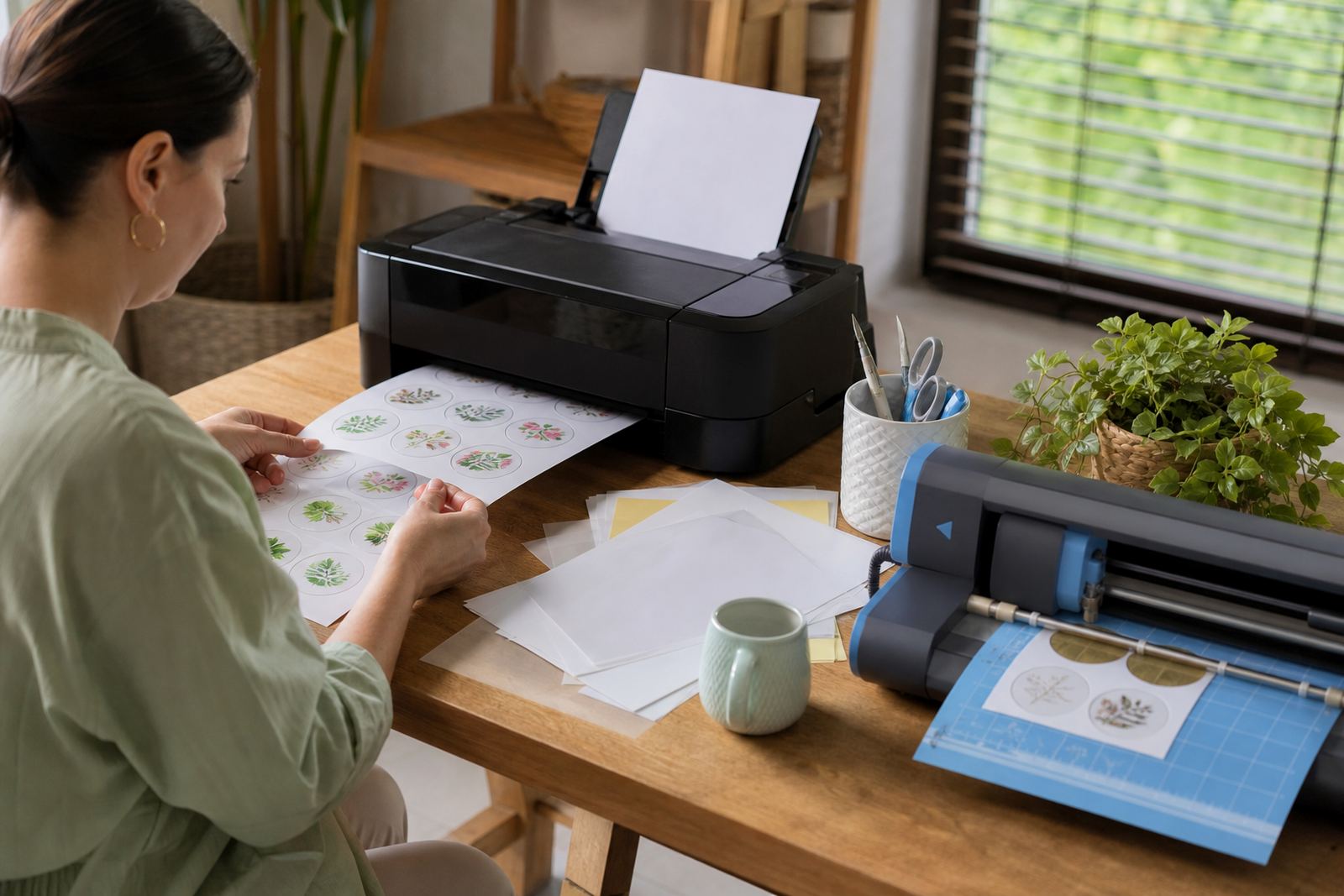
Inkjet and laser printing follow different rules, so the same sticker paper can behave differently in each machine. Inkjet printers place liquid ink on the sheet, which means drying time and coating matter. Laser printers use toner and heat, so the sheet must be suitable for that heat path or it can curl, wrinkle or leave a poor finish. A sheet that works well in one machine may not suit the other without adjustment.
For inkjet jobs, higher quality settings often give richer detail and better colour gradation. The trade off is slower printing and more ink use. For laser jobs, a heavier setting may help sharp text, but the printer still needs the right media choice so the toner bonds cleanly. If you are printing address labels, pantry labels or wedding favour stickers, test a small batch first and check for edge lift, patchiness and rubbing off after the print has cooled.
- Inkjet work benefits from longer drying time on gloss and clear sheets.
- Laser work needs media that can handle heat without curling.
- Small text usually prints cleaner at a higher quality setting.
Detail settings help with tiny text, borders and line art
When a sticker includes a fine border, a small ingredient list or thin line art, quality settings can make the difference between neat and fuzzy. Draft mode may be fine for internal planning, but it often softens edges and leaves colour looking flat. Standard mode is usually enough for plain labels, yet detailed work may need a higher setting to hold the edges together.
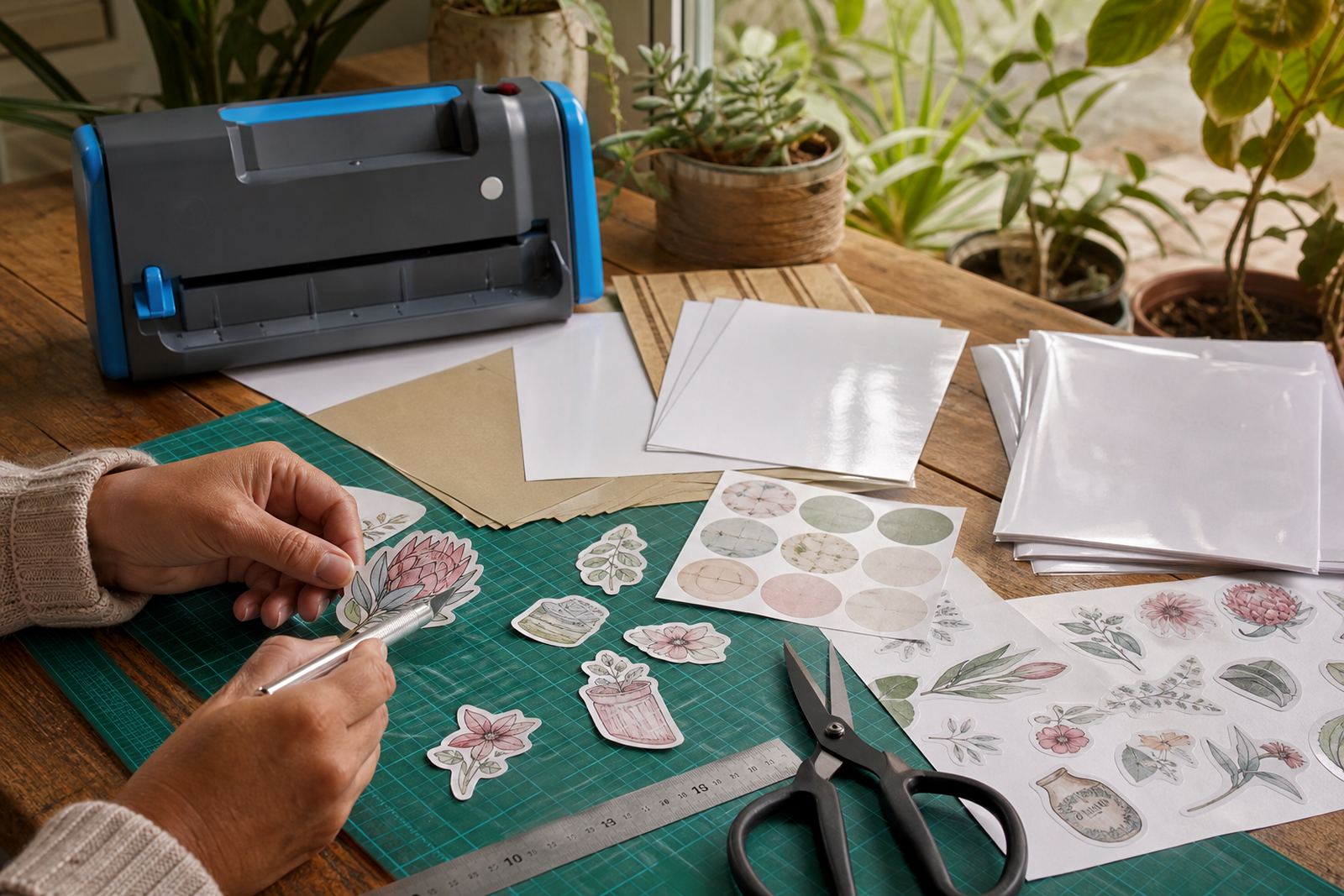
This is especially useful for crafters who cut stickers by hand or with a craft cutter. Clear edges matter when the cutter has to follow a printed contour, and tidy print definition helps the sensor or blade stay on track. If the artwork is busy, reduce the size a little or simplify thin lines. A cleaner design often prints better than a crowded one, and it also cuts more neatly.
- Use higher quality for hairline borders and small fonts.
- Keep contrast strong between text and background.
- Leave a safe margin around cut lines and important artwork.
Colour changes from room to room, printer to printer
Colour is one of the first things people notice when the print setting is not quite right. A bright label can look muted, while a pale pastel can turn too strong. Even a good printer may shift colour from one machine to another, and that is normal. Durban humidity can also affect how a fresh print dries, especially on coated gloss or clear sheets, so the same file may behave a little differently in Cape Town and along the coast where the air carries more moisture.
A local example is a Durbanville home maker printing jar labels for a market table in Stellenbosch. The design looked perfect on screen, but the first test sheet came out too dark because the printer was set too high for plain paper. Moving to the correct media type and one step down in ink density gave a cleaner label with better skin tones in the small product photos. The file did not need changing, just the print setup did.
- Print a small colour test before a full batch.
- Check whites, pastels and dark fills on the sample.
- Store printed sheets flat so damp air does not curl them.
Smudging, drying and paper jams are often setting problems
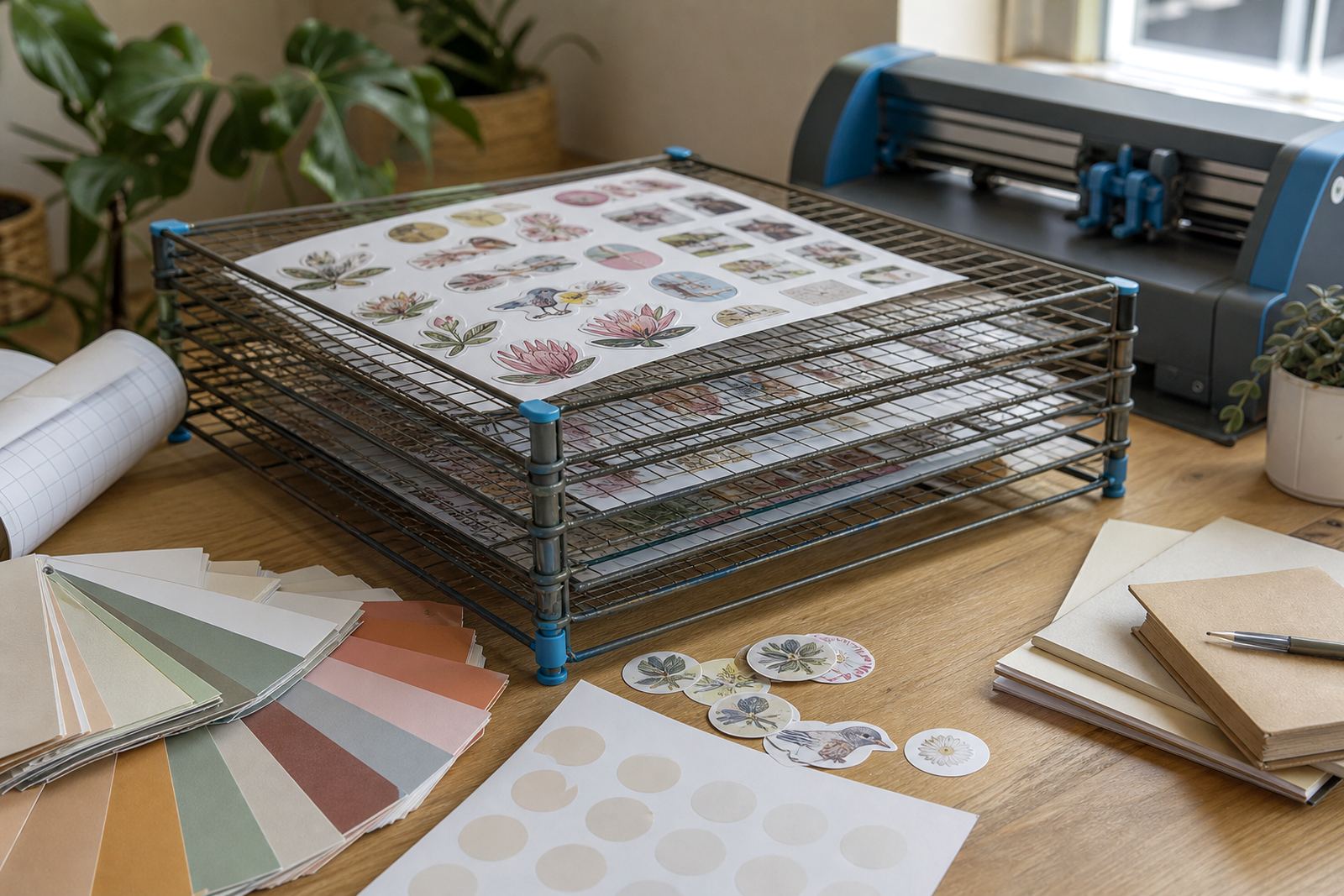
Smudge marks do not always mean the paper is poor. Often the printer is simply laying down too much ink for the sheet, or the sheet type is wrong for the job. If the print comes out glossy and wet, reduce the quality one step and allow more drying time. If the sheet catches on the feed path, make sure the media setting matches the thickness of the sticker paper and that the tray is not overloaded. Small changes can save a lot of wasted sheets.
Paper jams are more likely when sheets are curled, dusty or stacked unevenly. Keep sticker paper flat in its pack and avoid handling the print surface with oily fingers. For kraft and matte sheets, fingerprints may not show at first but they can affect ink grab and the final finish. A clean feed and steady tray setup matter just as much as the print quality button.
- Reduce ink load if the print is wet or smudging.
- Use only flat, clean sheets in the tray.
- Check feed guides so the sheet enters straight.
A practical print path for craft rooms and home labels
Different jobs call for different settings, and that is useful rather than annoying. A fridge label set for home organisation may work well at standard quality on matte paper. Gift stickers for a birthday box may need a higher setting on gloss or clear sheet to hold the colour. Vinyl labels for pantry jars may need a bit more care with drying and cutting so the print stays crisp when trimmed.
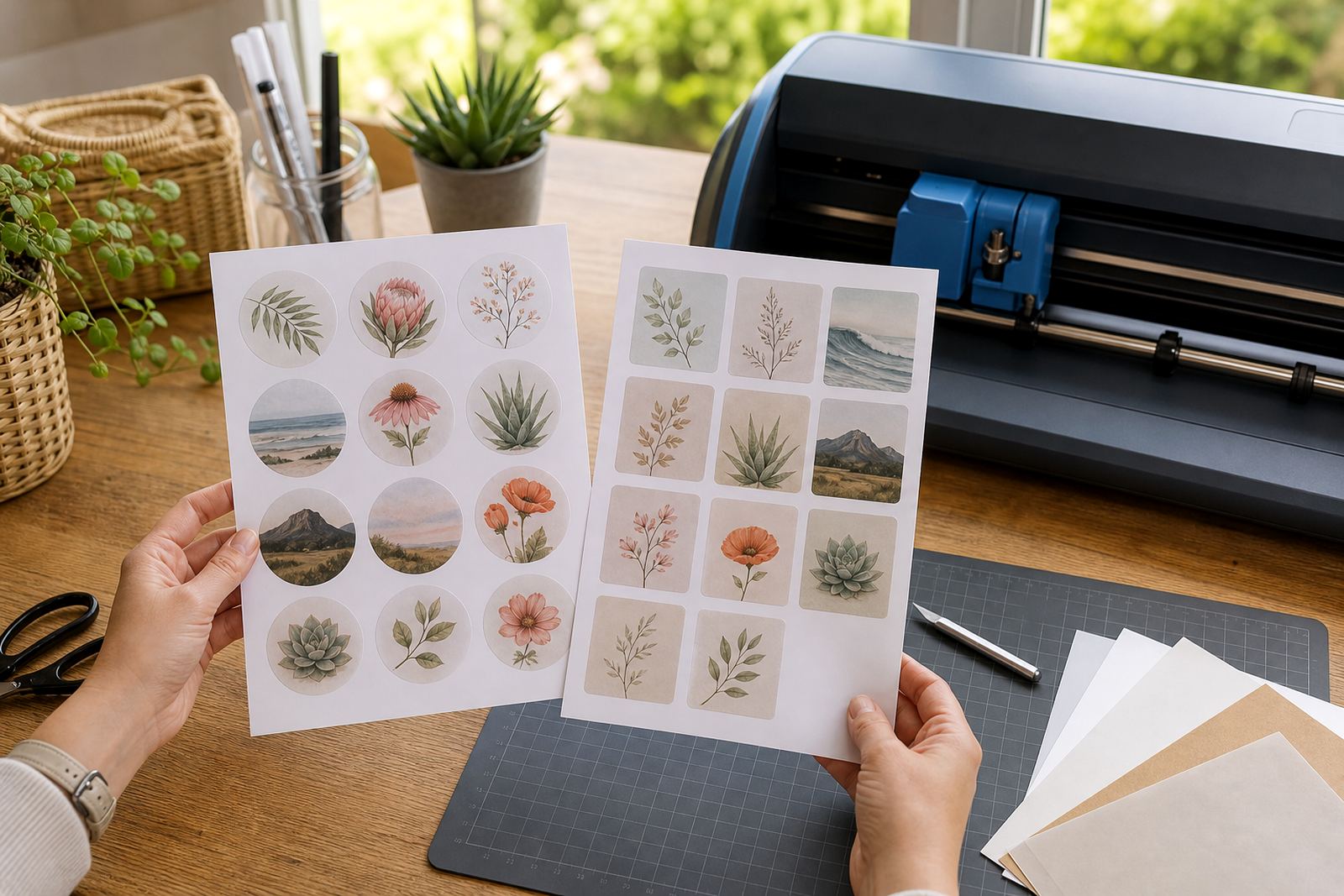
For many crafters, the safest method is to decide the finish first, then choose the setting. Matte sheets are forgiving and easy to cut. Gloss sheets show more shine and more detail, but they ask for patience. Clear sheets need careful layout because any pale area can disappear against a light background. Kraft gives a warmer, more natural look, though colour can appear softer than on white stock. Match the setting to the look you want, not only to the speed of the job.
- Matte is often the easiest starting point for home labels.
- Gloss and clear usually need more drying care.
- Kraft works well for earthy labels and handwritten styles.