
Start with the right paper setting on your printer
Set the printer to the closest paper type available for coated or glossy media when you are using printable sticker paper. If you are printing on matte or kraft stock, a normal paper setting can work better, but test a single sheet first so the ink sits properly.
Use the highest quality setting when the design has small text, fine lines or pale colours. Draft mode often puts down less ink, which can leave labels looking patchy or uneven on a sticky surface.
- Choose the paper type that matches the sheet finish as closely as possible.
- Keep colour mode on for artwork, logos and decorative labels.
- Print one test sheet before running a full stack.
Keep margins, size and orientation steady
Measure your label artwork carefully before printing, especially when you are filling a full sheet with many small designs. A few millimetres out on the layout can shift every cut line, and that makes hand cutting slower later.
Check whether the sheet feeds best face up or face down in your printer. If the feed direction is wrong the print may land on the backing side, or the image may sit slightly off centre.
- Match your document size to the actual sheet size.
- Lock the orientation before you send the job to print.
- Leave a clear margin around edges and cut lines.
Let the ink settle before you touch the sheet
Fresh ink can smudge if the sheet is moved too quickly after printing. Give it a little time to settle before stacking, trimming or placing the sheet through a cutter.
This matters more on gloss, clear and vinyl sticker paper, where the surface can hold wet ink near the top for longer. A light touch protects small details, and it also helps when you are printing full colour images for gifts or home labels.
- Lay printed sheets flat on a clean, dry surface.
- Avoid rubbing the image with your fingers.
- Keep finished sheets apart until the print is dry to the touch.
Adjust for inkjet and laser machines separately
Inkjet printers and laser printers behave very differently on sticker paper. Inkjet machines need ink that can absorb or dry on the coating, while laser printers use heat, so the sheet must suit that process or the finish can distort.
If you are using a laser printer, make sure the sheet is listed as compatible for toner based printing. Heat can curl some papers, and clear or vinyl sheets may need extra care to keep the edges flat.
- Use inkjet compatible sheets for inkjet printing only.
- Use laser compatible sheets only where toner printing is supported.
- Watch for curling, soft spots or toner that lifts near the edge.
Use cleaner cutting methods for a neater finish
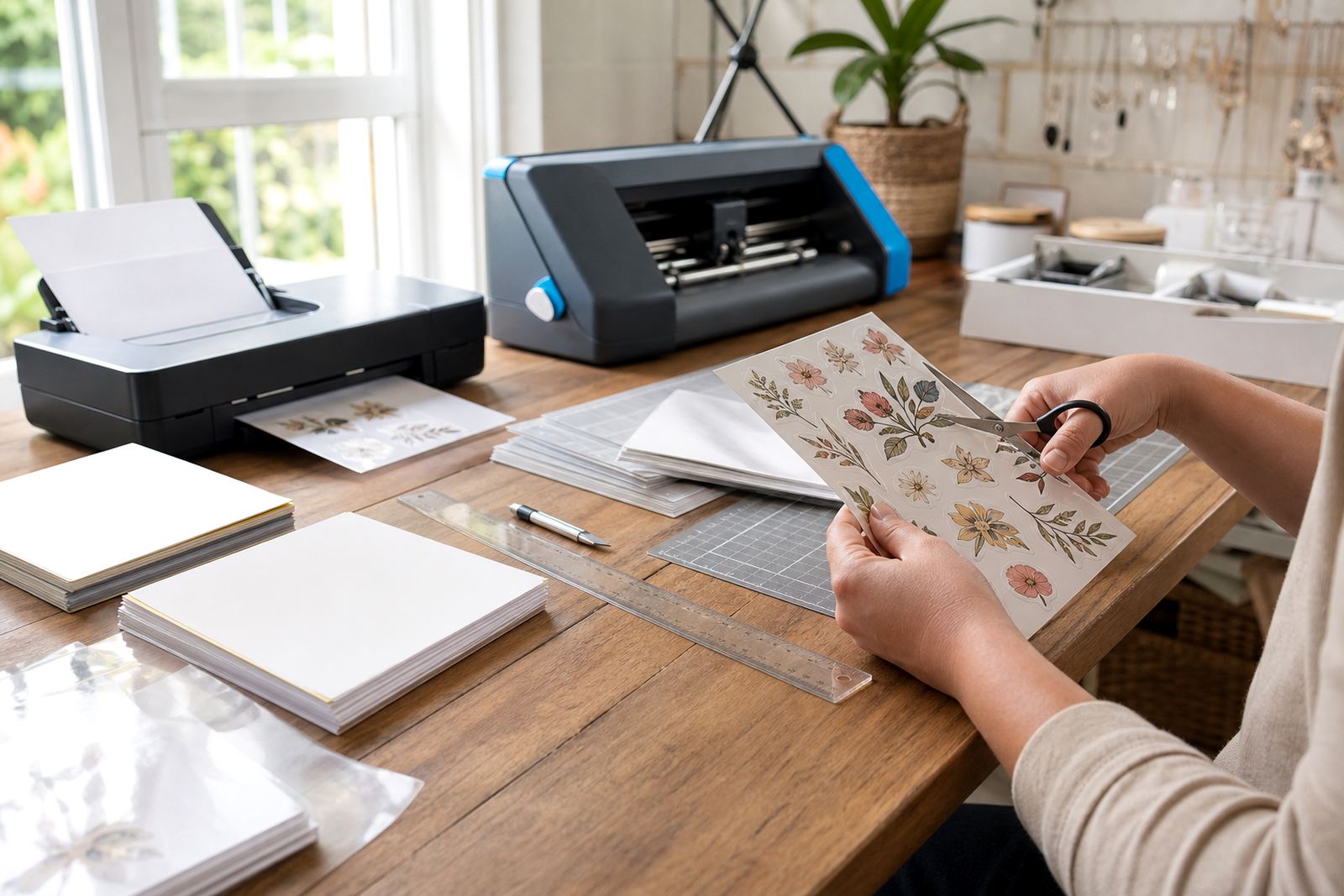
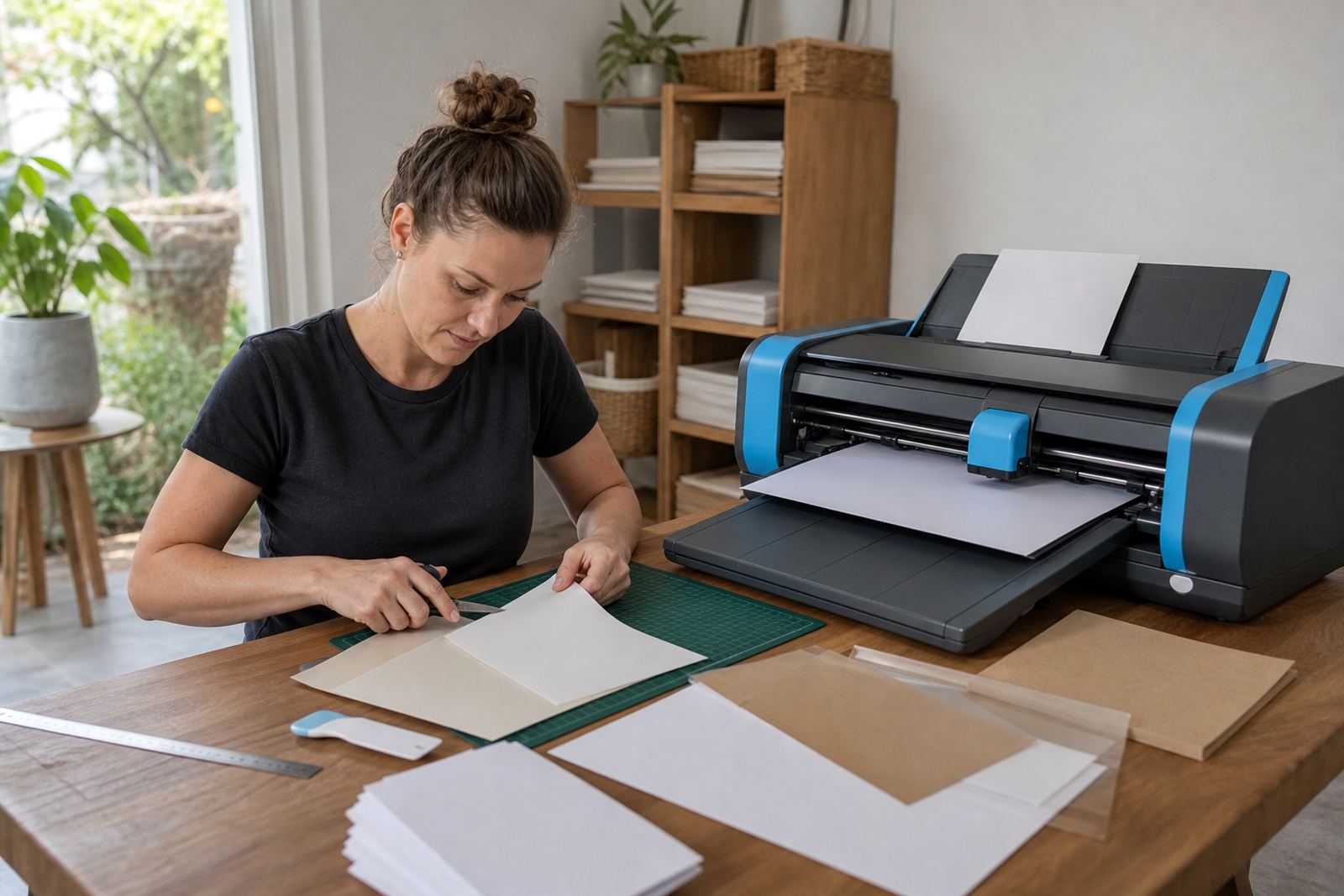
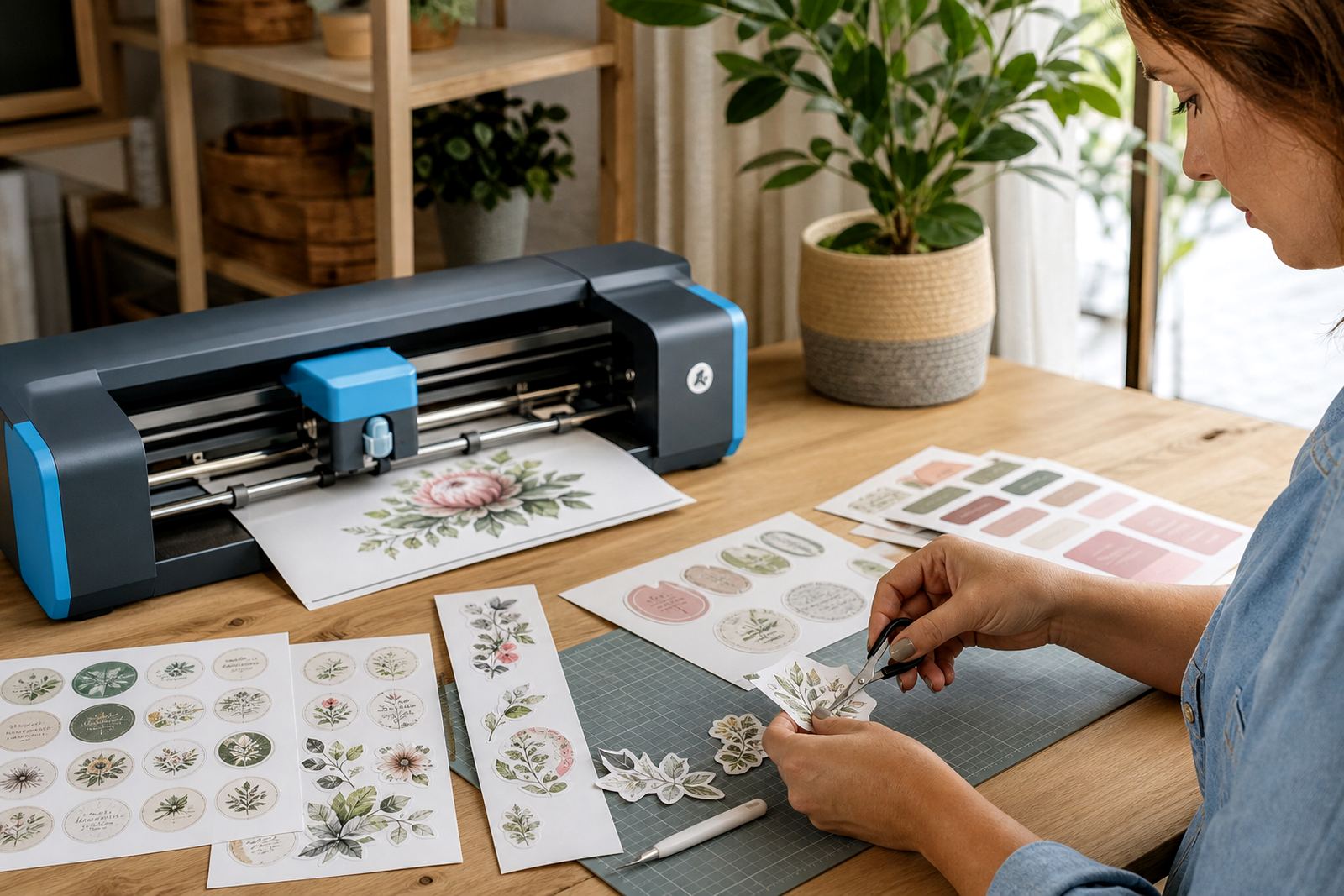
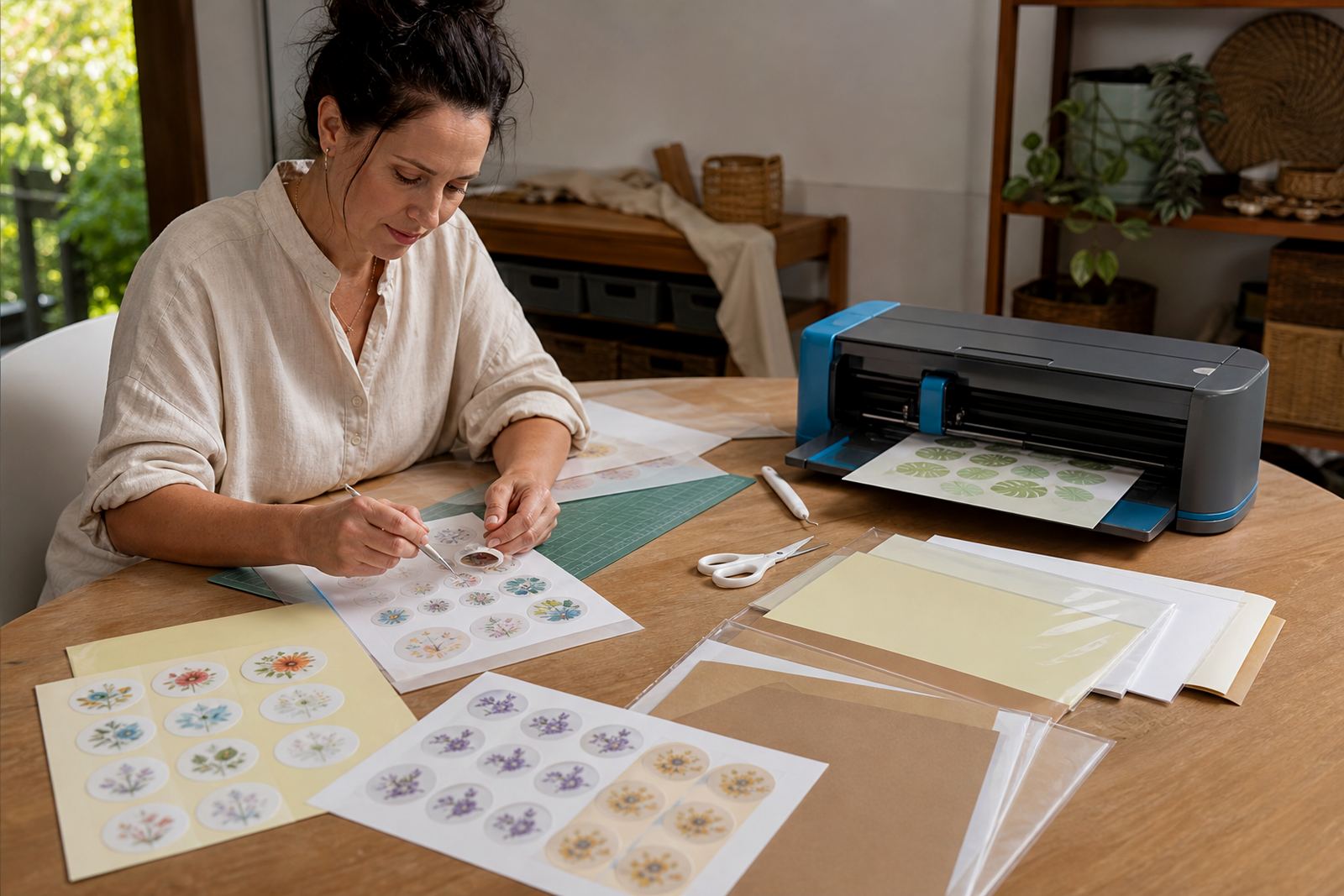
For straight labels and larger shapes, a sharp craft knife or scissors can work well if the sheet is steady on a cutting mat. Small sticker designs are easier to finish with a craft cutter, especially when the cut lines are tight and repeated across many sheets.
Keep the blade clean and do a test cut before a full run. Too much pressure can score the backing deeply, while too little pressure leaves corners hanging on after you peel the label free.
- Use a fresh blade for detailed shapes and small text.
- Test pressure on one corner before cutting a full sheet.
- Trim slowly around corners to protect the printed edge.
Store sheets flat and keep them dry
Sticker paper lasts better when it stays flat in a cool, dry place. In Cape Town and Durbanville, coastal moisture can make sheets curl if they are left open, so keep the pack closed until you need it.
If the sheet bends or picks up dust, the feed can slip and the print may shift a little on the page. A clean storage spot also helps with clear and gloss sheets, where marks show easily before printing.
- Store packs inside a box or sleeve when not in use.
- Keep sheets away from steam, direct sun and damp surfaces.
- Handle edges lightly so the surface stays clean.