
Start with the printer type, not the label idea
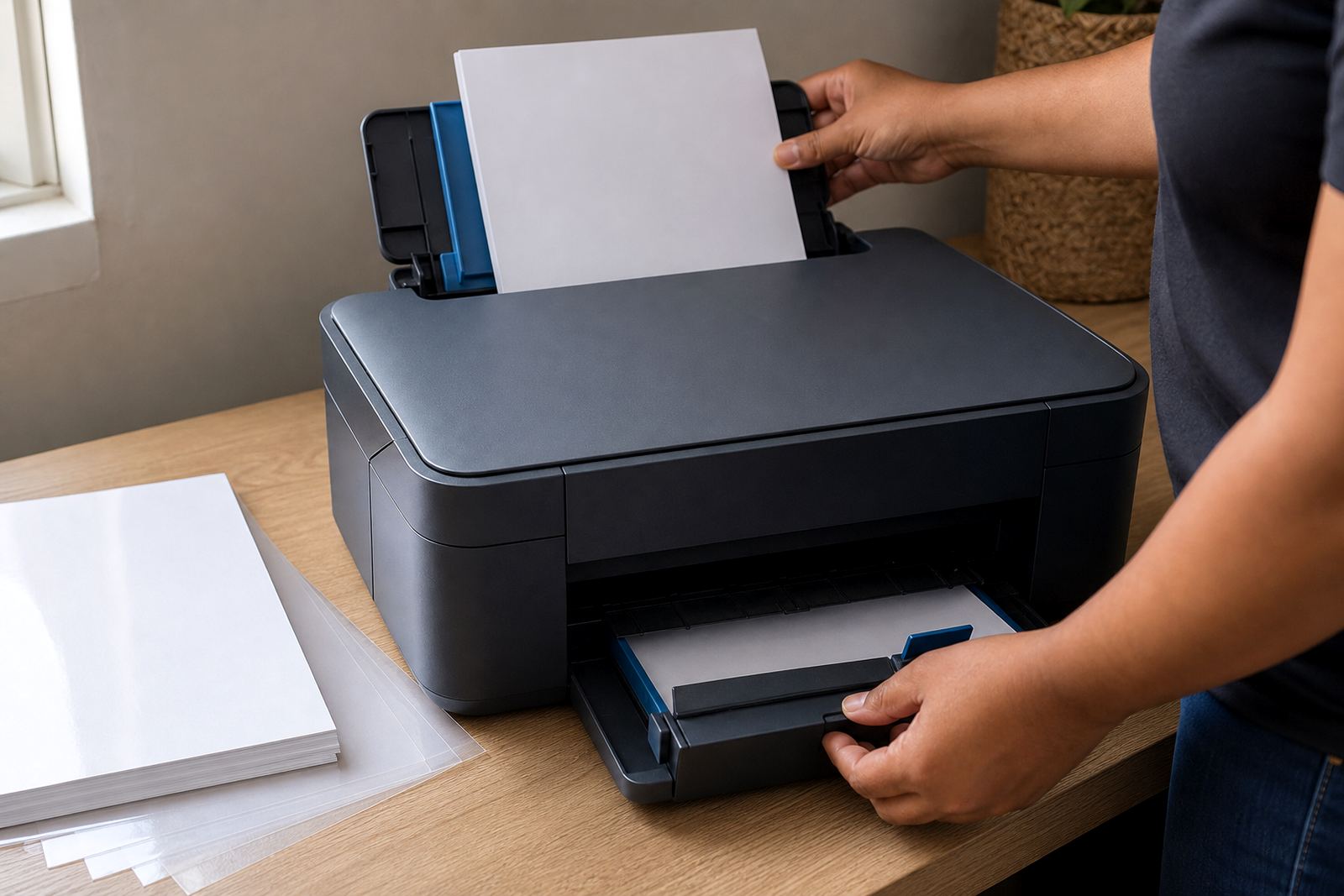
The first check is whether your printer takes inkjet or laser media. Inkjet machines place liquid ink onto the surface, while laser machines use heat and toner, so the coating on the sheet must suit that process. If the wrong type goes through, the print can smear, flake, curl or mark the rollers. In a Durbanville home office, that difference matters just as much as it does in a busy print corner in Johannesburg.
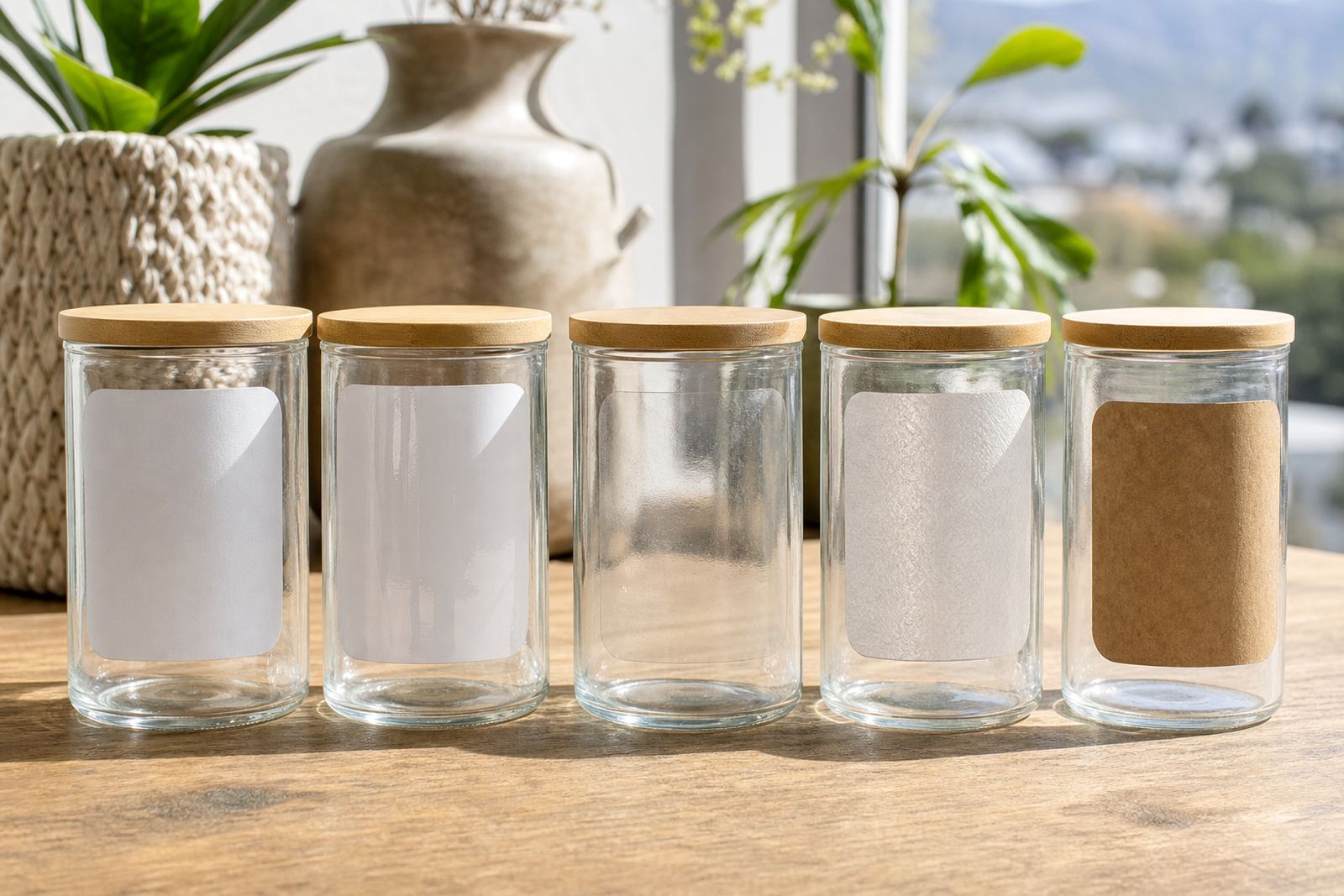
Printable sticker paper is made in several finishes for different jobs. Matte gives a softer, writeable surface for pantry labels and school folders. Gloss gives stronger colour for product labels and gift stickers. Clear sheets work well where the background must show through. Vinyl sheets suit items that may face more handling or moisture. Kraft gives a natural, paper look for jars, boxes and handmade packaging.
- Check whether the printer uses inkjet or laser printing.
- Match the sheet coating to the printer type.
- Choose the finish that suits the label surface and use.
Read the sheet notes before the paper goes in
Every pack should be matched to the printer settings, sheet size and feed direction. The label sheet may look ordinary, yet the backing, face stock and adhesive all affect how it prints. A clear sheet may need slower drying, while a gloss surface may need a slightly different colour profile and a clean feed path. If a sheet is loaded the wrong way round, the print can land on the backing side and the job is wasted.
For home makers in Cape Town, where air can shift from dry to damp, keeping paper flat matters too. A sheet stored near a kitchen window or in a humid laundry room may curl at the corners. That makes feeding less steady and can drag the ink or toner in places. Keep the stack in the same room where you print if possible, and only remove the number of sheets needed for the task.
- Confirm the printable face before loading the tray.
- Keep sheets flat and dry in storage.
- Use the correct paper size setting on the printer.
When colour matters, do a small test first
Colour behaves differently on matte, gloss and clear sheets. Soft pastel labels can look fine on a matte sheet, but the same artwork may appear darker on gloss. Black text is usually sharp on both, though small fonts need careful settings and a clean feed. For stickers with pale backgrounds, test the lighter areas as well, because some papers show the ink more strongly than others.
A simple colour test can prevent a full sheet from being wasted. Print one small panel first, then check the result under daylight and indoor light. If the colours look muddy, reduce saturation or adjust the printer setting for the paper type. If the print feels tacky or slow to dry, give it more time before touching it. That small pause helps with labels for jars, soap bottles and gift tags.
- Print a small sample before committing to a full page.
- Check text, icons and pale colours in real light.
- Let the print dry fully before trimming or stacking.
Cutting by hand or with a craft cutter
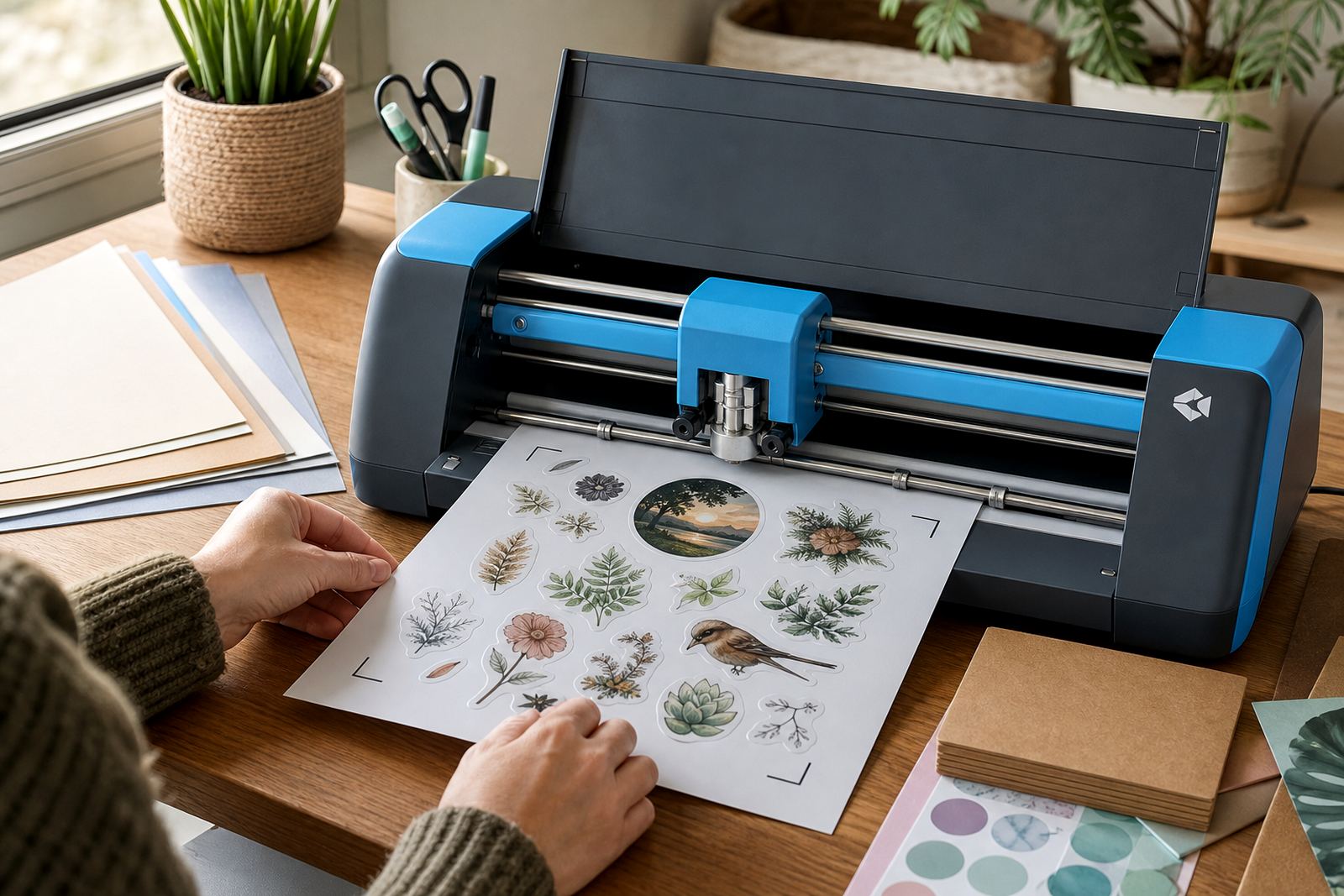
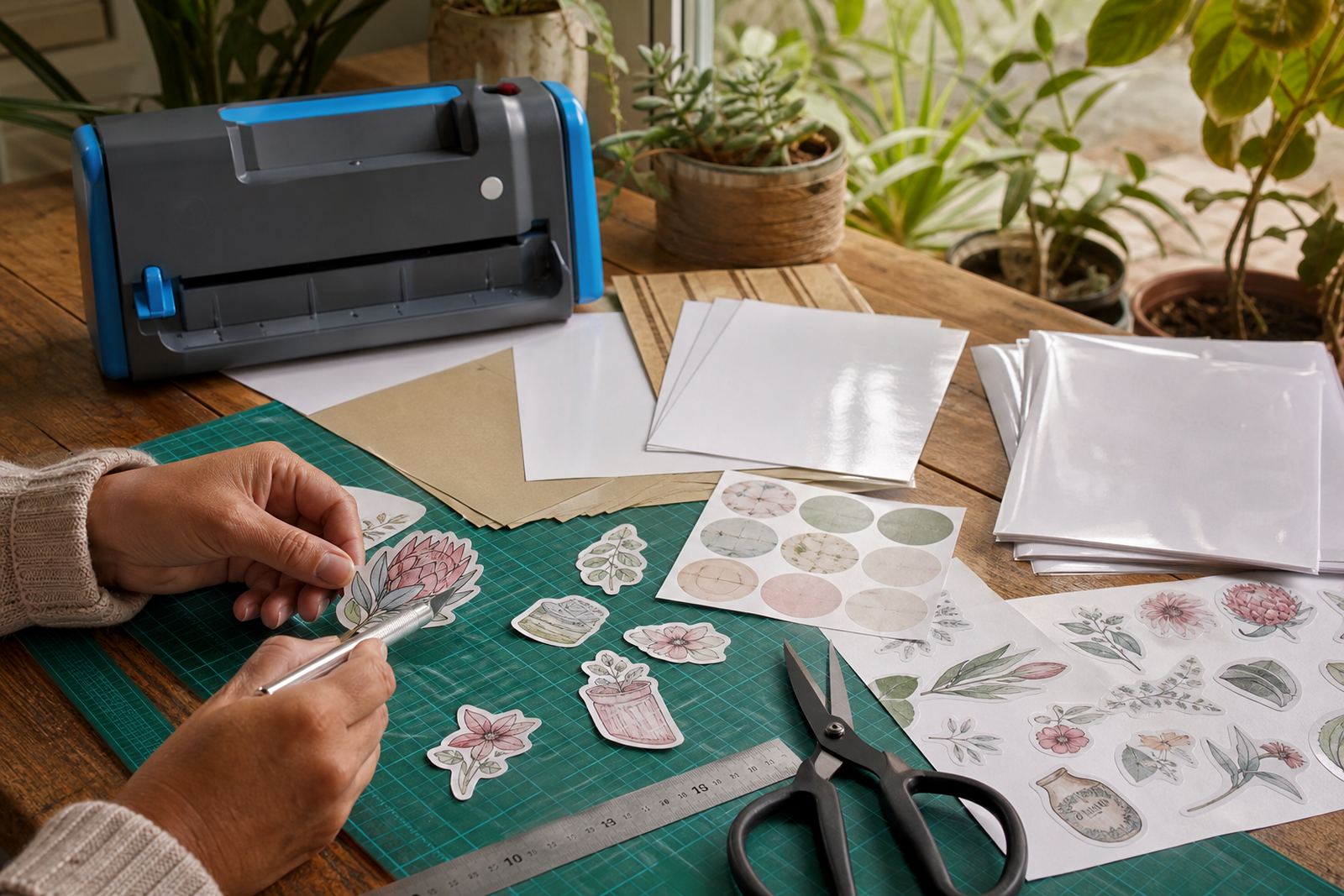
The way you cut the stickers should match the sheet and the design. Hand cutting suits simple rectangles, circles and home labels for tins or folders. A craft cutter works better for repeat shapes, detailed outlines and larger batches. Clear and vinyl sheets can be especially helpful when you need neat edges around logos, but the cut lines must still be set cleanly.
Blade depth and pressure matter, especially with thicker sticker stock. Too much pressure can lift the backing or score the base too deeply. Too little pressure leaves torn edges that catch during peeling. If you are using a cutter, do a test cut on one corner first. For hand cutting, a metal ruler and sharp blade give better results than blunt scissors, and a steady surface makes the edges cleaner.
- Use a test cut before starting the full sheet.
- Match blade pressure to the thickness of the paper.
- Keep cut lines away from fine text where possible.
Smudge control and paper jams usually start at the tray
Most print problems begin before the sheet leaves the tray. Overfilling the feed, bending the paper or mixing different weights in one stack can cause jams. On laser printers, heat can also affect the shape of the sheet if the stock is not suitable. On inkjet printers, heavy ink coverage on the wrong finish may smudge when handled too soon.
Paper jams are not only an office irritation, they can spoil a full set of labels. If a sheet stops part way through, the adhesive edge may catch, and the next sheet can follow badly. Keep the feed path clean and avoid using curled or damaged sheets. For a local maker in Durban printing labels for preservers and spice jars, a clean feed is often the difference between neat batches and a bin full of offcuts.
- Load only the number of sheets needed for the job.
- Avoid curled, bent or damp paper.
- Keep the printer path clean before larger runs.
Clear, vinyl and kraft each suit a different finish
Clear sheets suit containers where the product or surface should remain visible. They work neatly on glass jars, but the adhesive edge should still align carefully, because any trapped air will show. Vinyl sheets are useful when labels will be touched often or handled during storage. Kraft sheets give a hand-made look for candles, gift boxes and pantry jars, especially when a natural paper tone fits the room.
Each finish also changes how you place the label. Clear material looks best on a smooth, clean surface. Kraft stands out when the background is plain and the print is bold. Gloss gives stronger contrast, while matte supports writing with a pen after printing. The same artwork can feel entirely different once it moves from screen to sheet, so the finish should suit the job before the print starts.
- Clear suits glass and visible contents.
- Vinyl suits handling and frequent use.
- Kraft suits a natural, handmade look.
A Durbanville kitchen shelf can show the whole point
Picture a Durbanville home kitchen with labelled jars, a neat baking tin box and a folder of school notes on the shelf. The same design is not always right for every surface. The flour jar may need a matte label that can be written on, while a spice jar may need gloss for stronger colour. A freezer container may need a stronger adhesive choice than a decorative gift sticker.
That is why compatibility should be checked before printing the full set. One printer setting can work beautifully for one sheet type and fail on another. The finished label should be easy to read, easy to peel and tidy on the surface. When the paper, printer and cutting method line up, the result feels orderly and practical, with less waste and fewer do-overs.