
Pick the sheet that matches your printer
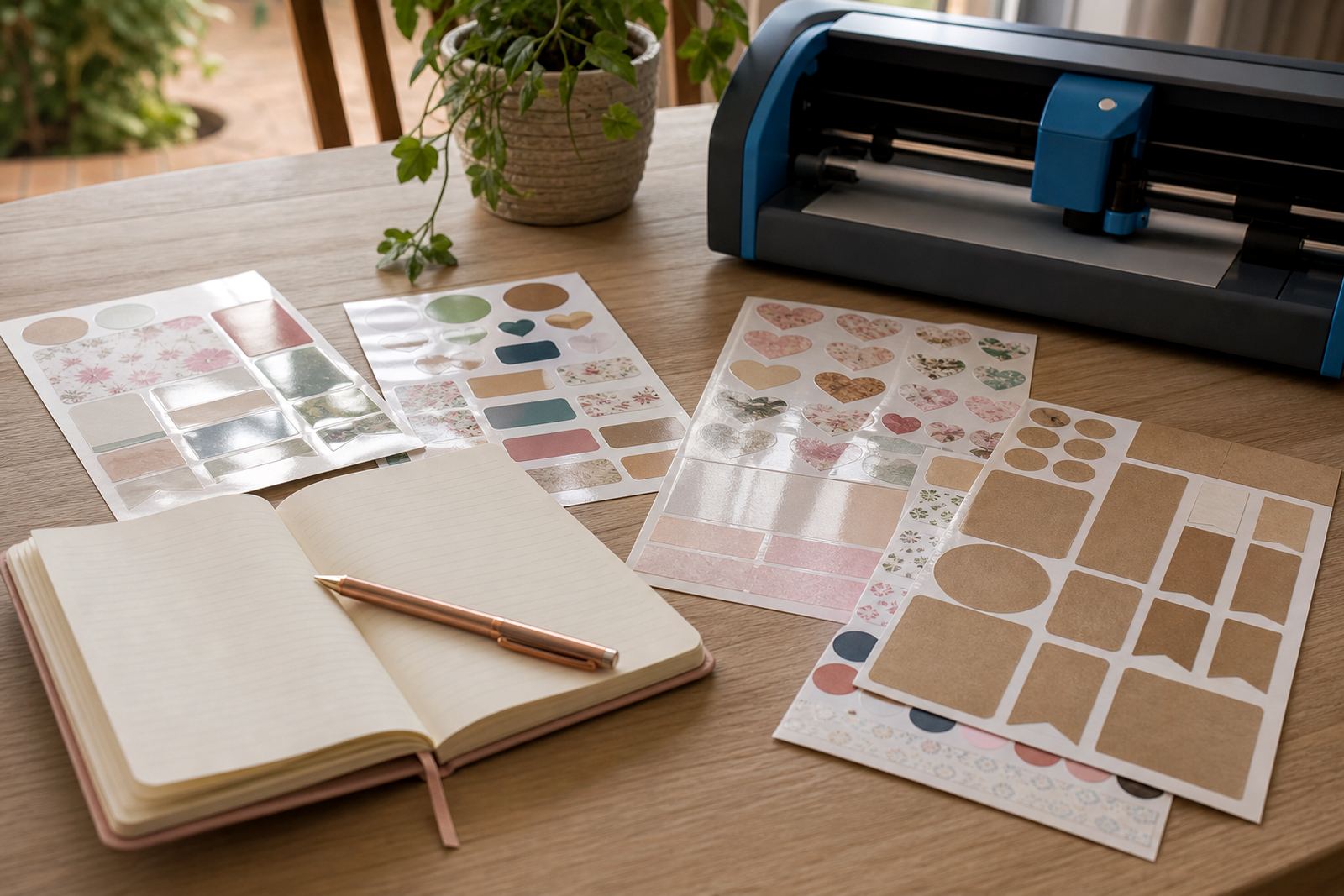
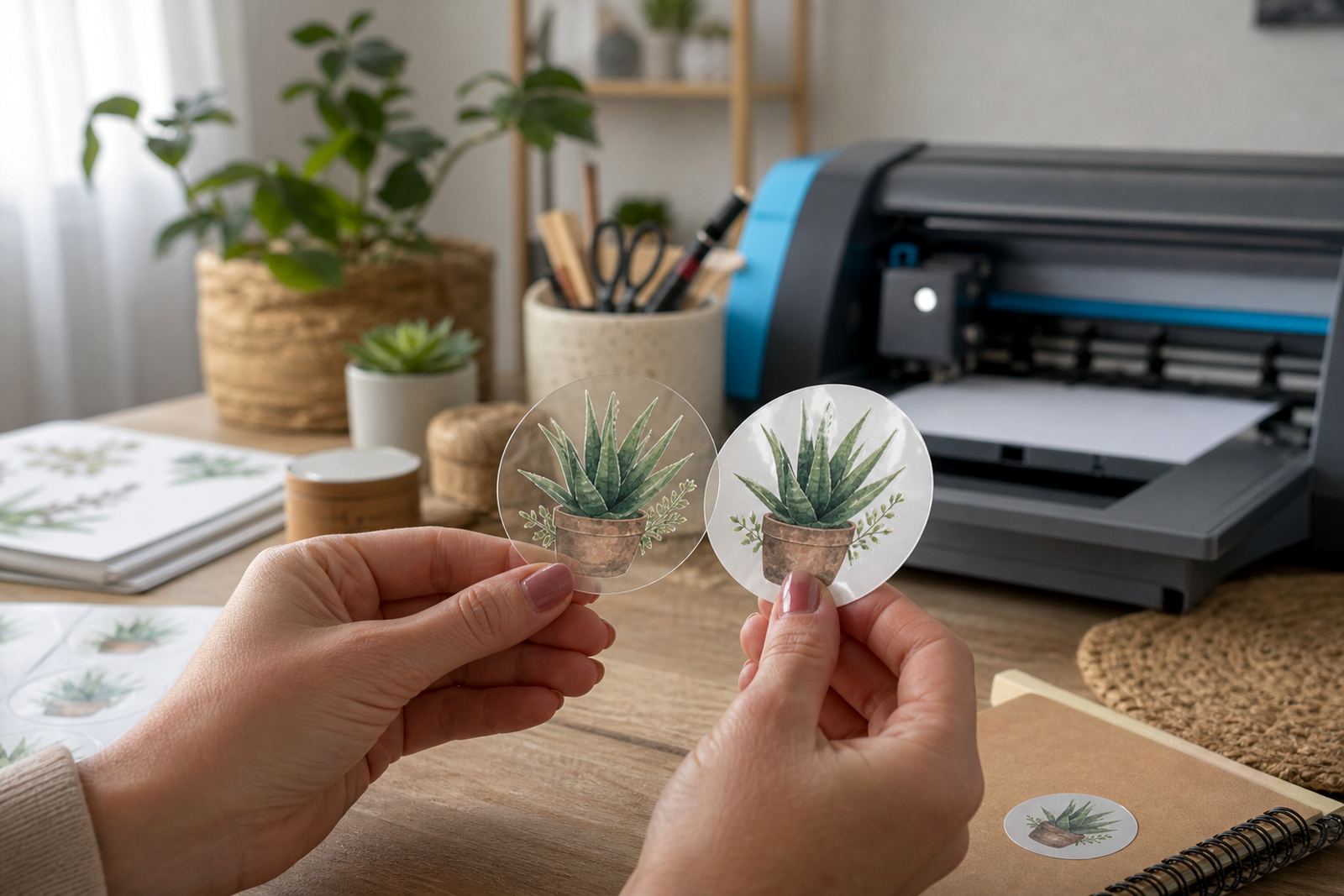
The first beginner mistake is treating every sticker sheet as if it works the same way. Inkjet, laser, matte, gloss, clear, vinyl and kraft sheets each behave differently, and the wrong match can leave print that smears, curls, or refuses to bond properly. A laser sheet in an inkjet printer will not give you the result you want, and the same applies the other way round.
For home makers in Cape Town or Durban, humidity can also affect how paper feels before printing. Keep sheets flat in a dry room and only open what you need for the current job. If you are making labels for jars, pantry tubs or gift packs, the finish should suit the surface and the look you want, not only the picture in your head.
- Check whether the sheet is made for inkjet or laser printing.
- Match the finish to the project, not just the colour.
- Keep unopened sheets flat and out of damp areas.
Do not skip the test print
A test print saves more paper than it costs. Beginners often send a full sheet straight through the printer, then notice that the colours are too dark, the text is too small, or the border sits too close to the edge. A small test on plain paper shows whether your layout needs adjusting before you use sticker paper.
Use the test to check sizing, alignment and colour balance. If you are printing labels for a home office, check that barcodes, ingredients or small text still read clearly. A few minutes here avoids a full sheet of waste there, and it helps you see how your design behaves on matte or gloss stock.
- Print one plain paper sample before the sticker sheet.
- Hold the sample against the project surface to check size.
- Confirm that small text stays sharp and readable.
Set the printer for the sheet in front of you
Another common mistake is leaving the printer on the wrong paper setting. Standard copy paper settings can put down too little ink for coated stock, while a heavy media setting on the wrong sheet can slow the print and cause smudging. The setting should suit the actual paper thickness and finish you are using.
For inkjet jobs, allow the print to dry fully before handling. For laser jobs, the toner needs to fuse properly, so do not rush the sheet out of the tray and stack it too soon. If the print looks dull, too wet, or patchy, the settings need attention before the next run.
- Choose the closest media setting for the paper type.
- Use a print quality setting that suits the artwork.
- Let freshly printed sheets rest before trimming.
Cutting too soon leaves rough edges
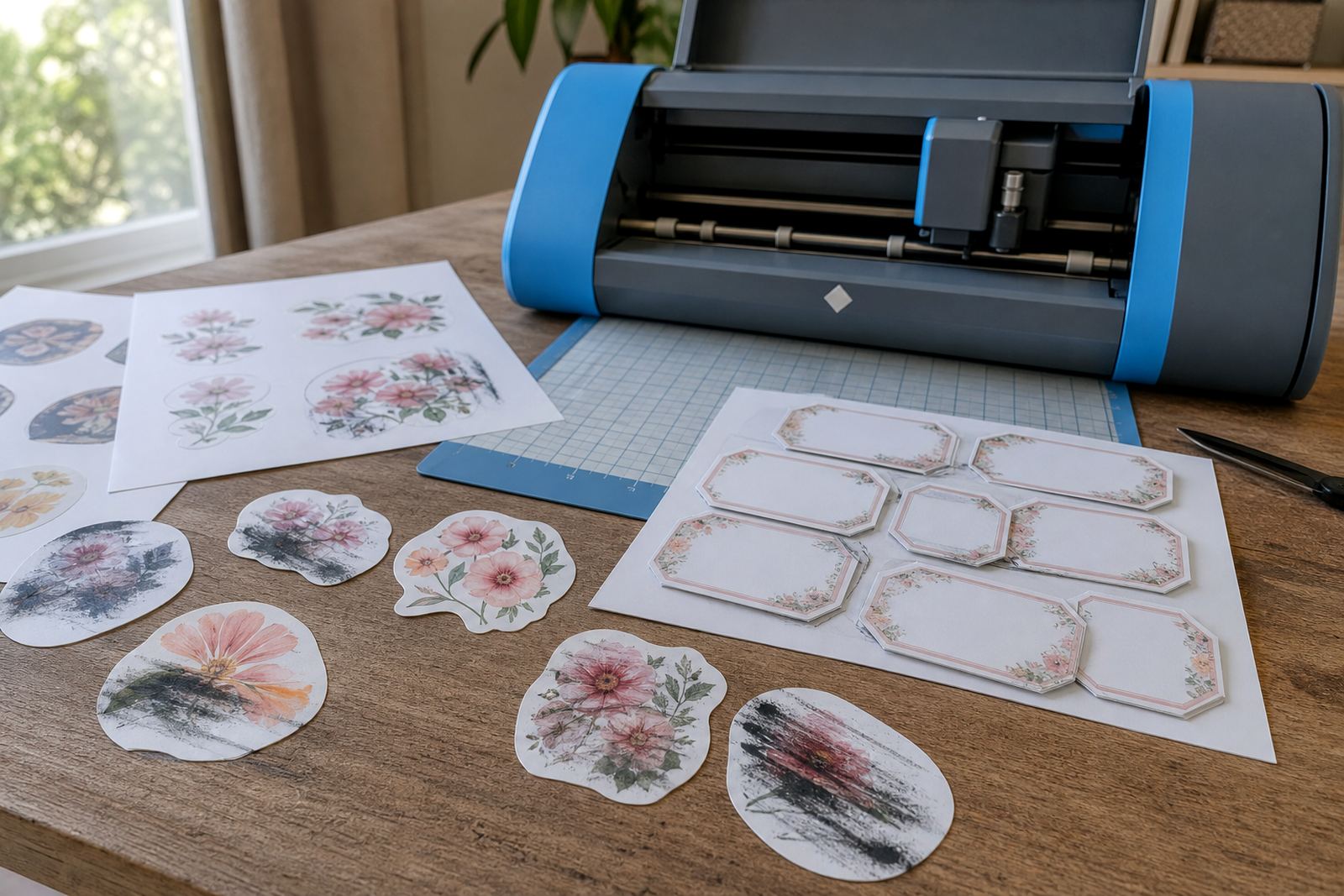
Freshly printed sheets are easy to damage. Beginners often cut while the ink is still settling, which can lead to smears, lifted corners, or rough edges. The safer habit is to wait, then cut with a steady hand or with a craft cutter set to the right depth. Too much pressure can score the backing and ruin the sheet.
Hand cutting works well for simple shapes and small runs. Craft cutters help when the design has repeated lines, circles or labels that must match each other. Keep blades clean, change them when they start dragging, and test a short cut before running a full sheet through the machine.
- Wait for the print to dry before cutting.
- Test blade depth on a spare offcut first.
- Use a ruler or cutting mat for cleaner edges.
Storage mistakes that bend the sheet
Sticker paper does not like heat, damp air, or uneven stacking. One of the easiest mistakes is leaving sheets near a sunny window, on a car seat, or in a busy storeroom where they pick up dust and curl. Once a sheet bends, feed issues become far more likely and the print line can shift.
Store sheets flat in their pack and keep them away from water splashes, steam and dust. In coastal areas such as Durban, extra care matters because moisture can creep into paper edges. If a sheet has curled slightly, place it flat under a clean weight for a while before printing, but do not force bent paper through a printer.
- Keep paper flat, dry and away from dust.
- Do not leave open packs near windows or sinks.
- Use sheets that stay flat through the feed path.
Applying stickers without trapping bubbles
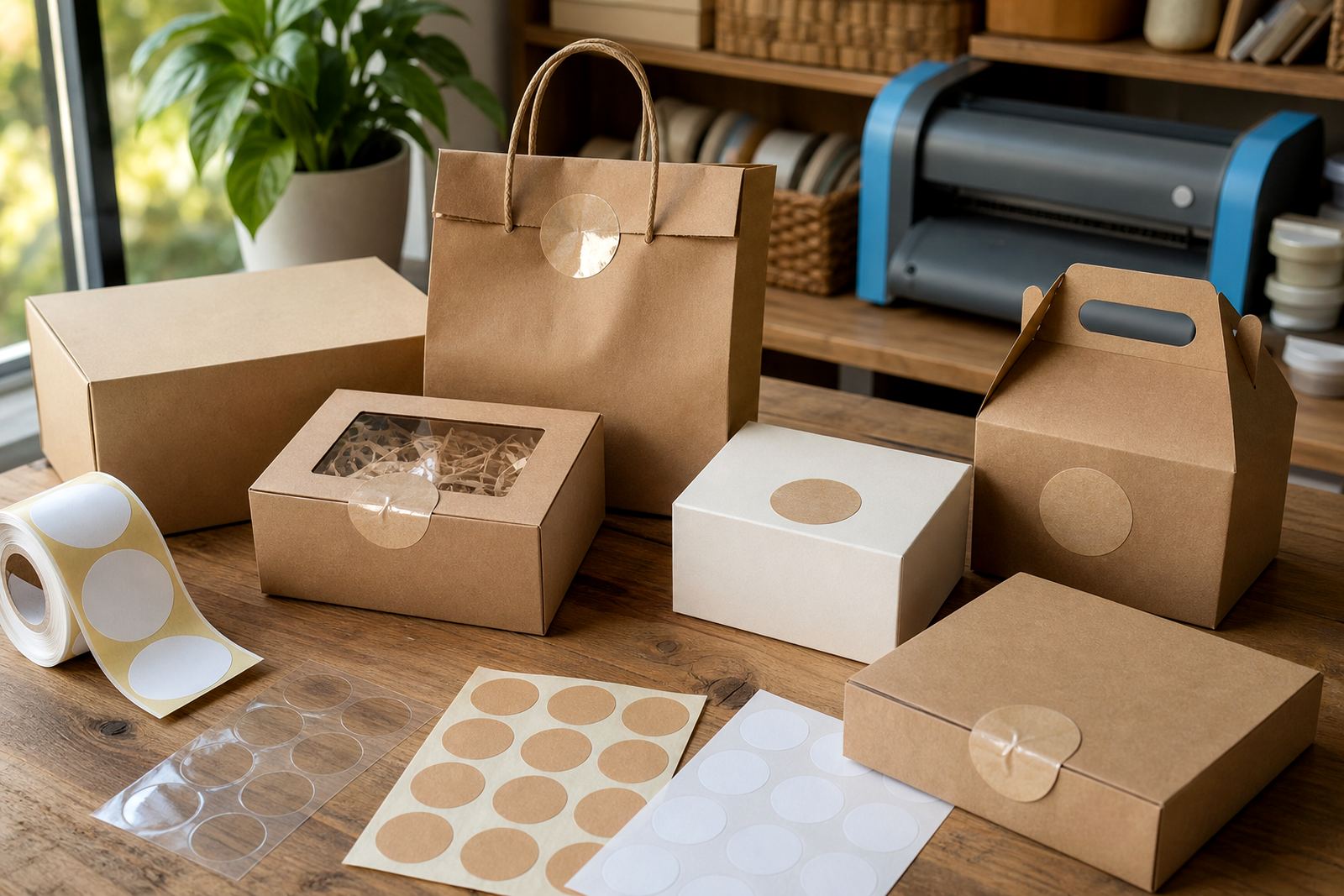
Even a well printed label can look untidy if it is applied badly. A beginner mistake is pressing the full sheet down at once, then trying to smooth out bubbles afterwards. Start from one edge, set the sticker in place slowly, and press across the surface in small passes. This works better on jars, plastic containers and gift boxes.
Clean the surface first, then make sure it is dry and free of powder, oil or loose dust. On curved containers, use smaller labels or a flexible material that settles more easily. If the edges lift, it often means the surface was not clean enough or the sticker was stretched while being placed.
- Clean and dry the surface before application.
- Set one edge down before pressing across.
- Use smaller labels on curved containers.
A quick beginner check before the next sheet
Most printing errors come from skipping a basic check. Before you load the next sheet, look at the paper type, printer setting, cut method and the surface where the label will go. That small pause helps with colour tests, smudge control, jam prevention and neater finished work.
For crafters and home makers in Johannesburg, Pretoria, Bloemfontein and Cape Town, the same rule holds true: match the sheet to the printer, print a sample first, and handle the paper gently from start to finish. That habit makes a stronger difference than any last minute repair.
- Paper type matches the printer.
- Test print has the right size and colour.
- Cutting method suits the shape and finish.
- Storage area is dry, flat and clean.